Building a Beginner Friendly Scripting System
Overview
For my GAM300/350 class at DigiPen, I was a part of a team of 8 Computer Science majors with the goal to build a custom game engine in C++ and use it to build a game over the course of the two semester class. We started in fall by building out the basics of an engine, the entirety of which was defined by large scope for portfolio spectacle. Our Graphics programmer built a Vulkan renderer, we had a custom Audio mixer and track system to integrate with scripting, our Physics programmer implemented Jolt. But most important to this, was our custom scripting system, Prose.
Our Game was based heavily on existing games like Kodu Game Lab, Project Spark, and Dreams. As such we needed to keep everything approachable for a beginner, and as far as logic goes this can be tricky, but we decided to give it a try. I (as the UI/UX programmer on the team) implemented the Clay UI library and used it to build a drag and drop block editor on top of the custom scripting language our Systems programmer built. This writeup covers the UI layer; the panels, the blocks, and how drag-and-drop works.
The Editor Layout
The scripting editor is a two-panel view that opens when you select a script file from the properties panel.
Left panel, the block sidebar
- Lists all available block categories (Events, Objects, Whiteboard, Functions, Math, Movement, Logic, Text, Audio)
- Each category is a collapsible accordion section; clicking a header toggles it open/closed
- Each category has its own color scheme defined in its JSON file, so blocks are visually grouped by type at a glance
- Blocks shown in the sidebar are templates, they stay put when you drag one out but are used to create the actual block
NOTE: The "Whiteboard" was our solution to variables, a per-object key value storage.
Right panel, the sentence canvas
- Scrollable list of sentences (the top-level scripting unit)
- Each sentence has a WHEN section and a THEN section
- A green "Add New Sentence" button lives at the bottom
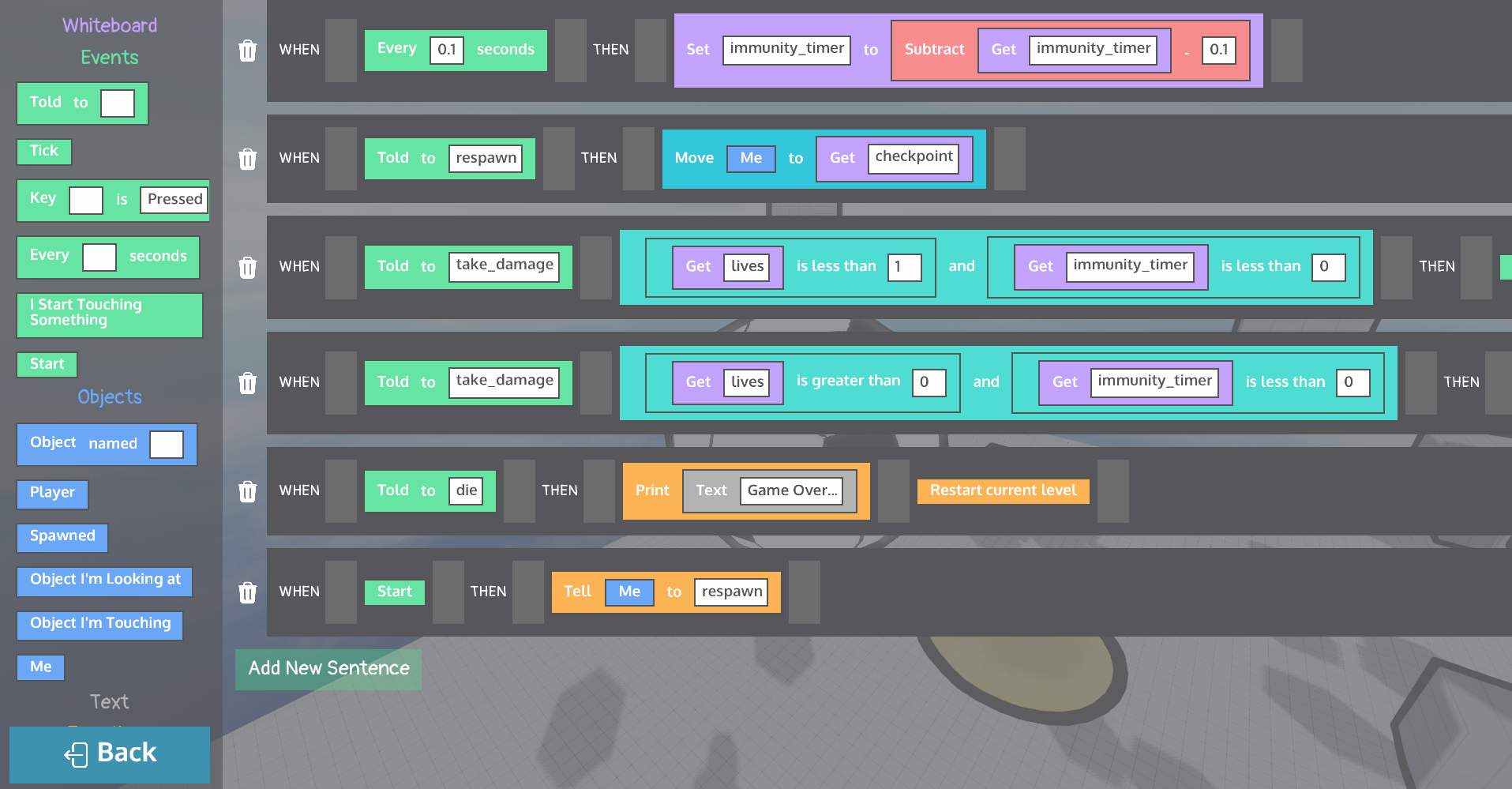
Sentences
A sentence is the basic logical unit in Prose: WHEN [conditions] THEN [actions].
// Generated Prose Code, line 3 in above screenshot
sentence Sentence3:
{
	events: told("take_damage");
	when:
	{
		return ((wbget(self, "lives") < 1) and (wbget(self, "immunity_timer") < 0));
	}
	then:
	{
		tell(self, "die");
	}
}- Conditions and actions are separate ordered lists of blocks
- Between every block (and at each end) there is an invisible drop zone that lets you insert a block at any position, not just at the ends

A trash icon sits to the left of each sentence to delete it entirely. Dropping any non-sidebar block back onto the sidebar also deletes it.
Blocks
Blocks are the draggable pieces. Every block is a horizontal strip of content. It contains a mix of static text labels and interactive input slots.
Each block has:
- Category - which group it belongs to (sets its color and sidebar location)
- Placement rules - whether it can go in CONDITION or ACTION (WHEN or THEN), and whether it's an outer or inner block
- Content - an ordered list of text and input pieces that make up its visual label, each content can also contain an inner block instead
- A unique ID - used to track and move it when dragging
Blocks are defined entirely in JSON files under res/Scripting/blocks/. Adding a new block means adding an entry to the right category file.
{
    "category": {
        "id": "wb",
        "name": "Whiteboard",
        "description": "Use these blocks to directly interact with the values in an object's whiteboard",
        "color": {
            "text": [ 255, 255, 255 ],
            "bg":   [ 139, 92, 246]
        }
    },
    "blocks": {
        "wbset": {
            "name": "Set",
            "description": "Set the value of a variable on the whiteboard of this object.",
            "argument": false,
            "placement_restrictions": {

            },
            "content": [
                {
                    "type": "STRING",
                    "label": "variable",
                    "id": 1
                },
                {
                    "type": "TEXT",
                    "text": "to"
                },
                {
                    "type": "ANY",
                    "label": "value",
                    "id": 2
                }
            ],
            "output": "wbset(self, $1, $2)"
        },
    }
}
Inner vs Outer blocks
- Outer blocks live directly in a sentence's condition or action row
- Inner blocks can be nested inside another block's input slot, replacing the default text/number field with a computed value
Input Slots
Input slots are the interactive pieces embedded inside a block. Each slot has a type:
| Type | Widget | Example |
|---|---|---|
| String | Text field | A dialog line |
| Number | Text field | A distance value |
| Enum | Dropdown | Direction (Left/Right/Up/Down) |
| Variable | Dropdown | A named world-board variable |
| Object Reference | Dropdown | A prefab to spawn |
| SFX / Music | Dropdown | An audio asset |
| Entity Reference | (placeholder) | A live entity |
| Boolean | (placeholder) | True/False |
Dropdown inputs populate their options from the project registry at runtime, so the list of variables or audio assets updates automatically as the project changes.
An input slot can also accept an inner block as its value instead of a typed input. The slot becomes a drop zone and the nested block's output is used in its place.
Drag and Drop
The DND system has three parts: Draggable, Droppable, and DNDManager.
Draggable is attached to every block. It tracks:
- The block's last known bounding box (so it knows where it started)
- A click offset (so the block doesn't snap to your cursor's top-left)
- A z-index (bumped on pick-up so the dragged block renders above everything)
- An opaque data payload (
std::any) carrying the block's ID and whether it came from the sidebar
Droppable is attached to every drop zone. It tracks:
- Which
Draggablewas released over it (cleared each frame after handling) - Whether something is currently hovering over it (for visual feedback)
DNDManager is the coordinator. There is one per editor. It:
- Holds a pointer to the currently-dragged block
- Wraps the entire editor's draw call so it can render the floating drag preview on top of everything
- Is registered as a global singleton so any droppable can report back to it
What happens on drop
- The
Droppablefires with a pointer to the releasedDraggable - The sentence checks the draggable's data payload
- Sidebar block → a new block is constructed from the template JSON and inserted at the drop index
- Canvas block → the block is located by UID anywhere in the loaded sentences (including nested), moved out of its current position, and inserted at the new index
- The script is auto-saved to JSON after every drop
Save and Load
The editor saves each script as two files:
- A
.jsonfile storing the block tree (which blocks, in which order, with what input values) - A
.prosefile, the compiled text output that the runtime reads
Saving happens automatically on every block drop and explicitly when you hit the Back button. The Back button also triggers a recompile of the .prose file and returns you to the properties panel. the JSON save format mirrors the block tree exactly, so loading is just reconstructing blocks from their category+id template and re-filling the saved input values.

Related Project
Kregs Toolbox
A beginner friendly game creation tool built in a custom C++ engine